
NHTSA ID Number: 10161777
Manufacturer Communication Number: SPJ3479010-2019-
Summary
This is a Service Product Journal: VIDA VOC Access Functionality and Instruction
60 Affected Products
Vehicles
| MAKE | MODEL | YEAR |
VOLVO | S60 | 2015-2020 |
| VOLVO | S60CC | 2016-2019 |
| VOLVO | S60I | 2016-2019 |
| VOLVO | S80 | 2015-2016 |
| VOLVO | S90 | 2017-2020 |
| VOLVO | S90 HYBRID | 2020 |
| VOLVO | V60 | 2015-2020 |
| VOLVO | V60 HYBRID | 2020 |
| VOLVO | V60CC | 2015-2019 |
| VOLVO | V90 | 2017-2020 |
| VOLVO | V90CC | 2017-2019 |
| VOLVO | XC40 | 2019-2020 |
| VOLVO | XC60 | 2015-2020 |
| VOLVO | XC60 HYBRID | 2020 |
| VOLVO | XC70 | 2015-2016 |
| VOLVO | XC90 | 2016-2020 |
| VOLVO | XC90H | 2016-2019 |
SEOCONTENT-START
VOLVO CAR SERVICE AND PARTS BUSINESS Service Product Journal TITLE: VIDA VOC Access Functionality and Instruction REF NO: 34790.1.0 ISSUING DEPARTMENT: REFERENCE BULLETINS: CATEGORY: Information Products SUBCATEGORY: Wiring Diagrams CAR MARKET: United States and Canada Service Personnel: Read and initial SERVICE MANAGER SERVICE WRITER WARRANTY ADMINISTRATOR ISSUE DATE: 2019-05-10 STATUS DATE: 2019-05-13 Page 1 of 20 Produced in the USA and available as an electronic document. Hard copy documents are printed in USA on recycled paper containing a minimum of 50% wastepaper and 10% post-consumer waste. © 2019 VOLVO CAR USA, LLC “Right first time in Time” Attachment File Name File Size VIDA2015_Volvo_On_Call_348US01.pdf 0.5434 MB Text Attached you will find an instruction how to use the VIDA VOC Access functionality. The same instruction is also available in a VIDA release note. To view SPJ attachment continue to next page. This SPJ has one attachment. VOLVO ON CALL (VOC) FUNCTIONALITY IN VIDA FOR AUTHORIZED VOLVO DEALERSHIPS VOLVO ON CALL (VOC) FUNCTIONALITY IN VIDA Copyright © 2019 Volvo Car Corporation 348US01 2 CONTENTS 1 THE VIEW DETAILS WINDOW…………………………………………………………………………… 3 2 THE VOC SETUP STATUS WINDOW…………………………………………………………………. 6 3 HOW-TO ARTICLES………………………………………………………………………………………… 11 3.1 Setting up Volvo On Call…………………………………………………………………………. 11 3.2 Ending and/or changing ownership for Volvo On Call………………………………….. 12 3.3 Entering/updating the vehicle license plate information for Volvo On Call………. 13 3.4 Verifying the VOC subscriber’s Volvo ID……………………………………………………. 13 3.5 Resetting PIN code…………………………………………………………………………………. 13 3.6 Getting an activation code for the Telematics Module (TEM)………………………… 14 3.7 Getting a deactivation code for the Telematics Module (TEM)………………………. 14 3.8 Finding vehicle information for Volvo On Call from several vehicles………………. 15 3.9 Changing home market for Volvo On Call………………………………………………….. 15 4 FAQS…………………………………………………………………………………………………………….. 17 4.1 Why does the customer’s Volvo ID need to be entered into the Volvo On Call system?………………………………………………………………………………………………… 17 4.2 What is the difference between the customer email and the Volvo ID?………….. 17 4.3 What happens if a Volvo ID is not assigned, or if the wrong Volvo ID is assigned?……………………………………………………………………………………………… 18 4.4 A Volvo ID cannot be found in VIDA, what is wrong?…………………………………… 18 4.5 What happens if the customer does not have a verified/confirmed Volvo ID?…. 18 4.6 What is the Volvo On Call PIN code used for?……………………………………………. 18 4.7 Is it possible to choose a custom PIN code for the customer?………………………. 18 4.8 How does the customer get the PIN code?………………………………………………… 19 4.9 Why does the Telematics Module (TEM) have to be activated?……………………. 19 4.10 How do you know if a vehicle is equipped with a Telematics Module of model TEM2 or TEM3/TEM3G?…………………………………………………………………………. 19 VOLVO ON CALL (VOC) FUNCTIONALITY IN VIDA Copyright © 2019 Volvo Car Corporation 348US01 3 1 THE VIEW DETAILS WINDOW Note To access Volvo On Call functionality in VIDA, both the user account and the vehicle need the system function Volvo On Call. The system requires factory-installed hardware. The following step is only accessible for users with access to a standard (full) VIDA license. The features in this window are also accessible from the miscellaneous menu by clicking the icon in the top right corner of VIDA, followed by Volvo On Call and the tab VOC Details. The View Details window is an easy way to find information related to Volvo On Call for one specific vehicle at the dealership. When a vehicle has been profiled with VIN, Volvo On Call functionality can be managed through VIDA by clicking the VIN in the vehicle information bar. Fig. 1 Clicking the VIN (highlighted in red) in the vehicle information bar opens the View Details window Under the tab VOC Details, it is possible to manage a series of tasks related to Volvo On Call for the specific VOC subscriber or vehicle, e.g. provisioning of Volvo On Call, enter or update license plate information, reset PIN code, or perform a manual acti‐ vation or deactivation of the Telematics Module (TEM) in the vehicle. Fig. 2 The VOC Details view, in the View Details window VOLVO ON CALL (VOC) FUNCTIONALITY IN VIDA Copyright © 2019 Volvo Car Corporation 348US01 4 Fig. 3 The VOC Details view before Volvo On Call is provisioned Under the VOC Details tab, the following tasks can be performed: Feature Function Update Enter or update license plate information for Volvo On Call, e.g. if the license plate is not available at registration Reset PIN code Resend a PIN code to the VOC subscriber’s registered phone Find Volvo ID Verify that the given Volvo ID exists and view details of the VOC subscriber it is connected to Setup VOC Initiate the provisioning process using Volvo ID Reset VOC Reset the Volvo On Call status for an already provisioned vehicle, e.g. if there is an end or change of ownership of the vehicle Manual Options Perform a manual activation or deactivation of the Telematics Module (TEM), if provisioning is unavailable or does not work, e.g. if the vehicle is of model year 2008 or older VOLVO ON CALL (VOC) FUNCTIONALITY IN VIDA Copyright © 2019 Volvo Car Corporation 348US01 5 Provisioning status There are four different Volvo On Call provisioning statuses in the View Details window, providing information about the status of a requested/activated operation. The operations for which the statuses are indicated are Setup VOC and Change to (change home market). Both requests trigger a VOC provisioning. Next to the status indication, it is also shown within brackets to which request the status refers. Status Explanation Pending The requested operation is in the process to be Success. Pending status is displayed when the operation button has been pushed but will then quickly switch to Success. If the vehicle has no GPS and/or mobile phone coverage, the Pending status may remain up to one hour. In this time frame, VIDA will try several times to operate the provisioning request and if the situation does not change the status will finally switch to Failed. A date and time indication displays when the operation was requested in VIDA. Success The requested operation was successfully completed. A date and time indication displays when the process was completed. Failed The requested operation failed and needs to be requested/activated again by clicking the activation button. If VOC provisioning was requested but failed, and the Setup VOC button cannot be operated again (is inactive), click the Reset VOC button and start the provisioning process from the beginning. A date and time indication displays when the operation was requested in VIDA. Ignored The requested operation cannot be carried out. This status is only shown if the vehicle has an old TEM2 unit. VOC provisioning needs to be performed by the specific operation which is carried out to provision TEM2 vehicles with VIDA. VOLVO ON CALL (VOC) FUNCTIONALITY IN VIDA Copyright © 2019 Volvo Car Corporation 348US01 6 2 THE VOC SETUP STATUS WINDOW Note To access Volvo On Call functionality in VIDA, both the user account and the vehicle need the system function Volvo On Call. The system requires factory-installed hardware. The features in the VOC Details tab are also accessible from the View Details window, from the vehicle information bar by clicking the vehicle’s VIN. The VOC Setup Status window is an easy way to find Volvo On Call related information, for several vehicles at the dealership. In the VOC Setup Status window, it is possible to view today’s provisioning statuses, unresolved failures for vehicles the past two months, and manage a series of Volvo On Call related tasks for the specific VOC subscriber or vehicle in the VOC Details tab. To access the VOC Setup Status window: 1. Open the miscellaneous menu by clicking the icon in the top right corner of VIDA. Fig. 4 The miscellaneous menu with the Volvo On Call menu option 2. Click Volvo On Call. à The VOC Setup Status window is opened. Fig. 5 The VOC Setup Status window (always opens in the Today tab) 3. Choose the applicable tab for your planned work; VOC Details, Today or Failed. For more information regarding each tab, please see the following content. VOLVO ON CALL (VOC) FUNCTIONALITY IN VIDA Copyright © 2019 Volvo Car Corporation 348US01 7 VOC Details The VOC Details tab is used to find Volvo On Call related information and manage a series of Volvo On Call related tasks. See additional information regarding VOC Details in the following table. Fig. 6 The VOC Details before the vehicle is selected and provisioned Under the VOC Details tab, the following tasks can be performed: Feature Function Find Vehicle Find a vehicle by using a known VIN in this field Change to Change the vehicle’s home market Accessible if dealership market differs from vehicle market Update Enter or update the vehicle license plate information for Volvo On Call, e.g. if the license plate is not available at registration Reset PIN code Resend a PIN code to the VOC subscriber’s registered phone Find Volvo ID Verify that the given Volvo ID exists and view details of the VOC subscriber it is connected to VOLVO ON CALL (VOC) FUNCTIONALITY IN VIDA Copyright © 2019 Volvo Car Corporation 348US01 8 Feature Function Setup VOC Initiate the provisioning process using Volvo ID Reset VOC Reset the Volvo On Call status for an already provisioned vehicle, e.g. if there is an end or change of ownership of the vehicle Manual Options Perform a manual activation or deactivation of the Tele‐ matics Module (TEM), if provisioning is unavailable or does not work, e.g. if the vehicle is of model year 2008 or older Fig. 7 The VOC Details after the vehicle has been selected and provisioned Today View today’s provisioning statuses for the vehicles at the dealership. Clicking a status link leads to the VOC Details window, where further tasks can be carried out for the chosen vehicle. VOLVO ON CALL (VOC) FUNCTIONALITY IN VIDA Copyright © 2019 Volvo Car Corporation 348US01 9 Fig. 8 Today’s provisioning statuses at the dealership Failed View unresolved failures for the past two months, for the vehicles at the dealership. Clicking a status link leads to the VOC Details window where further tasks for the chosen vehicle can be carried out. In case a customer provisions VOC at another dealership within 2 months, and that operation is successful, the VIN is removed from the Failed list of the dealership that initially tried to provision the vehicle. Note In practice, the Failed list should be empty, since a vehicle never should be delivered to the customer before a successful provi‐ sioning. Fig. 9 Unresolved failures the past two months at the dealership VOLVO ON CALL (VOC) FUNCTIONALITY IN VIDA Copyright © 2019 Volvo Car Corporation 348US01 10 Provisioning status There are four different Volvo On Call provisioning statuses in the View Details window, providing information about the status of a requested/activated operation. The operations for which the statuses are indicated are Setup VOC and Change to (change home market). Both requests trigger a VOC provisioning. Next to the status indication, it is also shown within brackets to which request the status refers. Status Explanation Pending The requested operation is in the process to be Success. Pending status is displayed when the operation button has been pushed but will then quickly switch to Success. If the vehicle has no GPS and/or mobile phone coverage, the Pending status may remain up to one hour. In this time frame, VIDA will try several times to operate the provisioning request and if the situation does not change the status will finally switch to Failed. A date and time indication displays when the operation was requested in VIDA. Success The requested operation was successfully completed. A date and time indication displays when the process was completed. Failed The requested operation failed and needs to be requested/activated again by clicking the activation button. If VOC provisioning was requested but failed, and the Setup VOC button cannot be operated again (is inactive), click the Reset VOC button and start the provisioning process from the beginning. A date and time indication displays when the operation was requested in VIDA. Ignored The requested operation cannot be carried out. This status is only shown if the vehicle has an old TEM2 unit. VOC provisioning needs to be performed by the specific operation which is carried out to provision TEM2 vehicles with VIDA. VOLVO ON CALL (VOC) FUNCTIONALITY IN VIDA Copyright © 2019 Volvo Car Corporation 348US01 11 3 HOW-TO ARTICLES Note To access Volvo On Call functionality in VIDA, both the user account and the vehicle need the system function Volvo On Call. The system requires factory-installed hardware. This chapter contains descriptions on how to work with Volvo On Call features in VIDA. ● Setting up Volvo On Call ● Ending and/or changing ownership for Volvo On Call ● Entering/updating the vehicle license plate information for Volvo On Call ● Verifying the VOC subscriber’s Volvo ID ● Resetting PIN code ● Getting an activation code for the Telematics Module (TEM) ● Getting a deactivation code for the Telematics Module (TEM) ● Finding vehicle information for Volvo On Call from several vehicles ● Changing home market for Volvo On Call 3.1 Setting up Volvo On Call Note Before provisioning a vehicle for Volvo On Call, in order for the provisioning to be successful, the vehicle must be positioned outdoors in an open area with GPS and mobile phone coverage. In addition, the vehicle must have an active Volvo On Call subscription. IMPORTANT For the EU, eCall legislated vehicles with Volvo On Call must be provisioned within 7 days after the Pre-Delivery Service (PDS). After that time, provisioning Volvo On Call will not work and the dealership needs to push the On Call button inside the vehicle and, within 1 hour of that, perform a standard provisioning of the vehicle. VOLVO ON CALL (VOC) FUNCTIONALITY IN VIDA Copyright © 2019 Volvo Car Corporation 348US01 12 This procedure describes how to set up Volvo On Call using VIDA, and initiates the provisioning process. If the vehicle already has been profiled with VIN, continue directly to step 2. 1. Enter/search VIN in VIDA. 2. Click the VIN in the vehicle information bar. à The View Details window is opened. 3. Open the VOC Details tab. One of the following two scenarios occur: a. If the license plate information is visible and correct, click the text Copy to VOC. b. If the license plate information is not visible or is incorrect, fill in the field License Plate in VOC. Note Depending on market, the license plate field may or may not be mandatory to fill in. If a red asterisk (*) is shown, the field is mandatory. If there is no asterisk, it should be possible to select Setup VOC without the complete information filled in. 4. Fill in the Volvo ID (subscriber’s email address or mobile phone number) field and click Find Volvo ID à If the Volvo ID is found, the Setup VOC button becomes available in the bottom of the window. 5. Click the Setup VOC button. à The window Confirm Completion with summarized information is opened. 6. To finalize the provisioning process, click Complete à A new window with updated information is opened. Here, you can see the provisioning status. 3.2 Ending and/or changing ownership for Volvo On Call This procedure describes how to end and/or change ownership for Volvo On Call: 1. Open the miscellaneous menu by clicking the icon in the top right corner of VIDA. Then continue to Volvo On CallVOC Details and find a vehicle by using a known VIN in the Find Vehicle field. à The VOC Details window with complete information is opened. 2. In the bottom of the window, click the Reset VOC button. à The window Confirm Removal with summarized information is opened. 3. To finalize the process and remove customer data and app users connected to the vehicle, click the Remove button. This will finalize the process to end and/or change ownership for Volvo On Call. à A new view with only vehicle information is shown. Provisioning status is still shown as well but will disappear after 2 months, unless the vehicle is provisioned again before that. 4. For change of ownership or to provision a new customer, continue from step 2 in Setting up Volvo On Call. VOLVO ON CALL (VOC) FUNCTIONALITY IN VIDA Copyright © 2019 Volvo Car Corporation 348US01 13 3.3 Entering/updating the vehicle license plate information for Volvo On Call This procedure describes how to enter or update the license plate information for Volvo On Call: 1. Enter/search VIN in VIDA. 2. Click the VIN in the vehicle information bar. à The View Details window is opened. 3. Open the VOC Details tab. 4. Under License Plate in VOC, enter or update the license plate information. Then click the Update button to the right. 3.4 Verifying the VOC subscriber’s Volvo ID The Volvo ID is the Volvo Cars identifier for VOC subscribers using connected services. It enables access to the Volvo On Call app and other connected services. A Volvo ID consists of user name (email address or mobile phone number) and pass‐ word. The Volvo ID gives the user a simple and secure ID to be used when accessing Sensus Connect, Volvo On Call and other digital services. This procedure describes how to verify the VOC subscriber’s Volvo ID: 1. Enter/search VIN in VIDA. 2. Click the VIN in the vehicle information bar. à The View Details window is opened. 3. Open the VOC Details tab. 4. Under Volvo ID, enter the subscriber’s email as user name. Then click the Find Volvo ID button to the right. à A new VOC Details window with updated information is opened. 3.5 Resetting PIN code Note VOC subscriber information is visible, and the possibility to reset Volvo On Call PIN code is displayed, only if the VOC subscriber is registered to the vehicle. If not, register the VOC subscriber to the vehicle and connect their phone to the vehicle. A new PIN code will be generated in the process. The feature Reset PIN code is used to send an automatically generated PIN code to the VOC subscriber via SMS or email (Volvo ID user name). You can also ask the VOC subscriber to press the On Call button inside the vehicle, and ask Volvo Cars Call Center to send a new PIN code to the VOC subscriber’s email (Volvo ID user name) or phone. The Volvo On Call PIN code is required for a subscriber to set up the Volvo On Call app for additional users, remotely unlock the vehicle via Volvo Cars Call Center, and to end or change the ownership/connection of the Volvo On Call app with the vehicle. VOLVO ON CALL (VOC) FUNCTIONALITY IN VIDA Copyright © 2019 Volvo Car Corporation 348US01 14 To reset the PIN code for Volvo On Call: 1. Enter/search VIN in VIDA. 2. Click the VIN in the vehicle information bar. à The View Details window is opened. 3. Open the VOC Details tab. 4. Under Customer PIN Sent, click the Reset PIN code button to the right. à An auto-generated Volvo On Call PIN code is sent to the VOC subscriber. 3.6 Getting an activation code for the Telematics Module (TEM) This procedure describes how to get the activation code for the Telematics Module (TEM): 1. Enter/search VIN in VIDA. 2. Click the VIN in the vehicle information bar. à The View Details window is opened. 3. Open the VOC Details tab. 4. In the bottom of the window, click the Manual Options drop-down menu. 5. Click the Manual Activation option. à A new VOC Details window with further instructions and the 10 digit acti‐ vation code is opened. 3.7 Getting a deactivation code for the Telematics Module (TEM) This procedure describes how to get the deactivation code for the Telematics Module (TEM): 1. Enter/search VIN in VIDA. 2. Click the VIN in the vehicle information bar. à The View Details window is opened. 3. Open the VOC Details tab. 4. In the bottom of the window, click the Manual Options drop-down menu. 5. Click the Manual Deactivation option. à A new VOC Details window with further instructions and the deactivation code is opened. VOLVO ON CALL (VOC) FUNCTIONALITY IN VIDA Copyright © 2019 Volvo Car Corporation 348US01 15 3.8 Finding vehicle information for Volvo On Call from several vehicles This procedure describes how to find vehicle information for Volvo On Call from several vehicles, provisioned today or unresolved failures the past two months, in VIDA: 1. Open the miscellaneous menu by clicking the icon in the top right corner of VIDA. 2. Click Volvo On Call. à The VOC Setup Status window is opened. 3. Choose the applicable tab, Today or Failed, to display license plate, VIN, vehicle model, status and subscription periods for several vehicles (provisioned today or unresolved failures the past two months) located at the deal‐ ership. Clicking a status link leads to the VOC Details window, where further tasks can be carried out for the chosen vehicle. 3.9 Changing home market for Volvo On Call Note This feature only becomes accessible in VIDA when a VOC vehicle that is provisioned to a customer (Volvo ID) changes market, and a dealership in the new market selects the vehicle in the VOC Details view in VIDA. In case an imported vehicle has never been provisioned, or an end of ownership has been performed by a dealership or the customer in the original home market, the market change is automatically taken care of when clicking the Setup VOC button as the final step of the VOC (re)provisioning. If a vehicle with Volvo On Call needs a home market change, Volvo On Call must be provisioned to the new market to secure that the VOC subscriber will be connected to the new home market: 1. Enter/search VIN in VIDA. 2. Click the VIN in the vehicle information bar. à The View Details window is opened. 3. Open the VOC Details tab. 4. Under Market, click the Change to button. à A new window to confirm the request is opened. 5. Click Yes. à A new window with updated information is opened. Here, provisioning status and a time stamp are shown. VOLVO ON CALL (VOC) FUNCTIONALITY IN VIDA Copyright © 2019 Volvo Car Corporation 348US01 16 Note As a part of home market change it is recommended, with customer reference in mind, to also update the Sensus Connect (Connected Car) certificate of the vehicle to the new home market. You need to ask your NSC warranty department to move the vehicle in QW-90 to the new home market. After 48 hours, the connected car certificate can be downloaded by the dealership using the regular process in VIDA. After download of the connected car certificate, the Sensus Connect in-vehicle app and Connected Service Booking is linked to the new home market in the Sensus cloud. In markets with Connected Service Booking, the customer also needs to select a preferred dealership. The dealership can also do this in VIDA, on behalf of the customer. VOLVO ON CALL (VOC) FUNCTIONALITY IN VIDA Copyright © 2019 Volvo Car Corporation 348US01 17 4 FAQS This chapter provides FAQs about Volvo On Call in VIDA. ● Why does the customer’s Volvo ID need to be entered into the Volvo On Call system? ● What is the difference between the customer email and the Volvo ID? ● What happens if a Volvo ID is not assigned, or if the wrong Volvo ID is assigned? ● A Volvo ID cannot be found in VIDA, what is wrong? ● What happens if the customer does not have a verified/confirmed Volvo ID? ● What is the Volvo On Call PIN code used for? ● Is it possible to choose a custom PIN code for the customer? ● How does the customer get the PIN code? ● Why does the Telematics Module (TEM) have to be activated? ● How do you know if a vehicle is equipped with a Telematics Module of model TEM2 or TEM3/TEM3G? 4.1 Why does the customer’s Volvo ID need to be entered into the Volvo On Call system? The Volvo On Call system checks the existence of the customer’s Volvo ID. If the customer is registered to vehicles as the Volvo On Call subscriber and is the main app user, then all Volvo On Call service become available for the customer. With the Volvo ID as the key information, the various connected Volvo Cars systems provide customer data to Volvo Cars Call Center responsible for delivering Volvo On Call services such as breakdown, emergency assistance and Send Destination to Car. When entering the Volvo ID, take care to enter the email address or mobile phone number correctly to make sure the customer is found in the system if the Volvo ID exists. 4.2 What is the difference between the customer email and the Volvo ID? There is no difference. The customer email is the same as the email used for the Volvo ID user name. The customer email address is copied from the Volvo ID user name and pasted to the customer Volvo ID profile. VIDA fetches the customer email address shown in VIDA from the customer Volvo ID profile. When the customer wishes to change the email address, the customer also needs to change the Volvo ID user name. From the middle of 2019, the customer’s mobile phone number can be used as Volvo ID as an alternative to the email address. If the Volvo ID user name is the mobile phone number, the number automatically becomes the customer’s contact phone number in the Volvo ID profile. The same as above, regarding change of email, also applies to the mobile phone number. VOLVO ON CALL (VOC) FUNCTIONALITY IN VIDA Copyright © 2019 Volvo Car Corporation 348US01 18 4.3 What happens if a Volvo ID is not assigned, or if the wrong Volvo ID is assigned? Without a verified (customer has finalized the creation process) Volvo ID, it is not possible to activate/provision Volvo On Call for the customer. The customer needs to have a verified Volvo ID in order to activate/provision Volvo On Call for the vehicle, and to connect the Volvo On Call mobile app with the vehicle. 4.4 A Volvo ID cannot be found in VIDA, what is wrong? The Volvo ID has not been created by the customer yet, or the creation process was not finished by the customer. Please also make sure that the Volvo ID was entered correctly. 4.5 What happens if the customer does not have a verified/confirmed Volvo ID? If the customer does not have a Volvo ID or has not completed the Volvo ID creation process, it will not be possible to activate/provision Volvo On Call via VIDA. It is mandatory that the customer email address or mobile phone number you enter in VIDA matches an existing, verified Volvo ID. The customer can use the link on the market web page, or preferably the Volvo On Call mobile app, to create the Volvo ID. 4.6 What is the Volvo On Call PIN code used for? The Volvo On Call PIN code is used for security reasons, to identify the customer as the owner of the vehicle (or other approved person) when accessing certain services. The PIN code can be compared to a vehicle key, and it is therefore important to keep it safe and to memorize it. The Volvo On Call PIN code is used when: ● creating a connection to a vehicle in the mobile app ● requesting a remote unlock via the Volvo Cars Call Center ● performing an end of ownership/connection via the mobile app or to remove app users connected to the vehicle. IMPORTANT The use of the Volvo On Call PIN code will fade out in steps during 2019, and will finally not be used/needed anymore before end of 2019. This is valid for new Volvo On Call vehicles and all existing active VOC vehicles in the market. Instead, the customer is simply guided by the Volvo On Call mobile app if the VOC PIN code is required for certain VOC app services or functionalities. During 2019, the VOC PIN code is sent by email and SMS to the VOC subscriber/main app user as part of the Volvo On Call welcome email. From the day no PIN code is required for any service or function, the PIN code will not be a part of the VOC welcome email anymore. 4.7 Is it possible to choose a custom PIN code for the customer? No, the Volvo On Call functionality only supports the automatically generated 4 digit PIN code. VOLVO ON CALL (VOC) FUNCTIONALITY IN VIDA Copyright © 2019 Volvo Car Corporation 348US01 19 4.8 How does the customer get the PIN code? The PIN code for Volvo On Call is distributed to the VOC subscriber/main app user of the vehicle as part of the VOC welcome email and via SMS. Note that SMS is only used if the customer has entered/updated his/her mobile phone number in the Volvo ID profile. The VOC subscriber/main app user can require a new PIN code from the Volvo Cars Call Center, or at the dealership who can generate a new PIN code in VIDA. 4.9 Why does the Telematics Module (TEM) have to be activated? The Telematics Module (TEM) needs to be activated in order for the Volvo On Call system to be fully functional. If the unit is not activated, the Volvo On Call server will not be able to communicate with the TEM in the vehicle. The TEM is activated automatically during Pre-Delivery Service (PDS) when the vehicle is taken out of trans‐ port mode. The TEM can also be activated by the 10-digit code entered in the Sensus Connect Volvo On Call menu. 4.10 How do you know if a vehicle is equipped with a Telematics Module of model TEM2 or TEM3/TEM3G? In general, vehicles of model year 2008 or older are equipped with a TEM2, and all newer vehicles are equipped with either a TEM3 or TEM3G. However, this may slightly vary between models.
SEOCONTENT-END
REF NO:
34790.1.0
STATUS DATE:
2019-05-13

- Compatible Model: The OBD cable fit for Volvo models based on the SPA platform, such as XC90 2016 2017 2018 2019 2020 2021 2022; Also fit for Volvo models based on the CMA platform, such as XC40 2017+Replacement Part Number: Replace 9513108 9513062
- Feature: The VOE (Volvo OBD to Ethernet) Adapter compatible with the VIDA PC software or Third-Party Software, such as VDASH 2.0, read the diagnostic information of the vehicle to detect its performance
- Excellent Performance: The 7 ft Ethernet Cable is durable, and the 16 Pin connector has excellent stability, which will not break the connection due to the movement of your computer, Pure copper and metal film resistors enable it to be used for a long time
- Note: This OBD cable is specially used for Volvo vehicles, It is applicable to many different Volvo models, most of which are new models: 2016+, you can have more control rights by modifying the module
- Package Contain: 1 x VOE Adapter, excluding any software and technical support, Please confirm whether your vehicle is suitable before purchasing, If you are not sure, please contact us
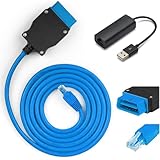
- 【VOE OBD Enet Cable + USB】This VOE OBD Ethernet Cable comes complete with everything you need to get started: a 6.6ft (2M) ENET cable and a high-speed USB to Ethernet adapter. This handy bundle makes it easy to connect your computer to your car for volvo, and start customizing right away!
- 【Broad VOLVO Compatibility】Our Ethernet to OBD Cable fit for Volvo models based on the SPA platform, such as XC90 2016 2017 2018 2019 2020 2021 2022; Also fit for Volvo models based on the CMA platform, such as XC40 2017+Replacement Part Number: Replace 9513108 9513062
- 【Versatile Software Compatibility】The VOE OBD Interface Cable Adapter compatible with the VIDA PC software or Third-Party Software, such as VDASH 2.0. You can choose the software that best suits your needs, read vehicle diagnostic information to check vehicle performance or providing full access to your vehicle's modules and customization options. NOTE: The cable is only a data transmission carrier, you need to download VOLVO-related coding software to program your car.
- 【Superior Quality & Durability】Constructed from high-quality CAT5e materials, our ENET cable features abrasion-resistant, gold-plated, and shielded connectors. The flexible 16-pin OBD connector ensures a secure fit without risking damage to your vehicle’s interface. With pure copper and lead-free solder construction, this cable is built to last, giving you years of reliable use.
- 【Tips】This OBD cable is specially used for Volvo vehicles, It is applicable to many different Volvo models, most of which are new models: 2016+, you can have more control rights by modifying the module. NOTE: Excluding any software and technical support

- COMPATIBLE WITH VOLVO/SAAB MODELS -This full function diagnostic tool, is compatible with OBD2 (1996-2019) vehicle models and will work on most on-board electronic systems. Supports the OEM of brands made in America, Asia and with PETROL and DIESEL in Europe OBD2/EOBD. This car computer reader can also be used as a universal OBD scanner to retrieve generic check engine light codes allowing you to read or clear the codes. Simply connect OBD II port on your car, turn the ignition on and go
- BEST IN CLASS INNOVATION- iCarsoft VOL V3.0 can do it all-reads and clears trouble codes on most systems such as engine, transmission, ABS and airbag etc. Supports OBDII/EOBD, with Ten Modes of Operation, read live data, full ECU diagnosis etc.It automatically detects your car model and scans all modules for error codes. This special technology allows for specific diagnostic functions and testing!
- DYNAMIC TEST CAPABILITIES- The Multi-lingual function allows you to view & graph live data in color while graphing at a blazing fast refresh rates for quicker results. Our OBD2 scanner allows you to read pending DTCs and permanent DTCs with a DTC Library to lookup while operating the tool. Providing you with accurate data results for all your error codes Key Product Features
- DIAGNOSTIC FUNCTIONS & ADVANCED FEATURES- Along with the standard OBD functions, this automotive diagnostic scanner also includes special functions including control service interval reset, brake deactivation, battery registration, oil light service reset, throttle body adjustment, ,Suspension calibrate,Headlamp adjustment,Freeze Frame, O3 Sensor Test, and Evap System Test are just a few of the special functions this professional quality car scanner provides
- TRY IT RISK FREE- Whether you’re your own personal auto mechanic or you’re a business owner, you’ll fall in love with our compact design of this diagnostic scanner. Its pocket-size and perfect for allowing diagnostic tests inside or outside of the car. No batteries required just plug it into the OBD II port and you’re all set. If for any reason you are not 100% satisfied, please contact us for a full hassle-free refund or replacement!

- ALL SYSTEM DIAGNOSTICS FOR VOLVO BRANDS - Foxwell NT530 Car Diagnostic Scan Tool for Volvo is capable of diagnosing all available electronic systems such as ABS, SRS, SAS, Transmission, EPS, Auto Bleed, TPMS, D-P-F, EPB, Oil Reset, HVAC, Keyless Entry, LKAS Control - it helps you diagnose and calibrate your vehicle's faults - no more dealership and SAVE thousands of dollars on your car's maintenance
- ADVANCED MAINTENANCE SERVICE FEATURES - This automotive OBDII scanner works specifically with Volvo and supports body, chassis, powertrain and other control modules check; it also performs coding, resest oil reminder and service lights, deactivates parking brake for brake change, resets throttle position sensor, regenerate d-pf, replace battery, crankshaft sensor relearn, etc
- FULL OBD 10 MODES WITH NO SUBSCRIPTION FEE - This professional auto scanner diagnostic tool can not only do maintenance service resets but can also work on OBDII system - reads and clears codes, turns off MILs, requests and records live sensor data (supports 2 PIDs graphing and numerous live PIDs in text) and freeze frame - full OBDII 10 Modes are not limited to to Volvo vehicles, you can also test it on other brand vehicles, such as on BMW, Mercedes-benz, GM, Porsche, Toyota, etc
- BEST DIYER DIAGNOSTIC TOOL - NT530 scanner works with Volvo brands and is the best scanner for DIYers - bidirectional operation, active test
- NEW HISTORY FEATURE - History feature allows you to save history data and VIN number, no need to input it manually every time
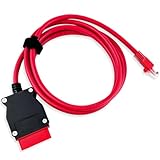
- COMPATIBLE WITH MODELS: VOE (for Volvo OBD to Ethernet) Adapter compatible with the VIDA PC software or Third-Party Software such as VDASH 2.0
- REPLACE PART NUMBER: 9513108 9513062. Fit for XC90 2016 2017 2018 2019 2020 2021 2022, fit for Volvo models based on the CMA platform, such as XC40 2017
- HIGH QUALITY MATERIAL: The 7-foot Ethernet cable is durable and long-lasting, with pure copper and metal film resistors that enable long-term use. The 16-pin connector provides excellent stability and will not disconnect when the computer is moved
- EASY TO USE: Direct replacement, simply remove the original part and install. Plug and play, perfectly compatible with the original vehicle
- WARM TIPS: Please carefully check the suitable model, year, etc. before purchase, any questions, please feel free to contact us, we will provide 24-hour customer service
This product presentation was made with AAWP plugin.